
CleanMyMac X
Reading Time: 5-7 minutes
When it comes to buying a new MacBook (and so far it has happened twice since I use macOS), I have to make a big leap in quality. For the MacBook I have now, for example (a 2019 MacBook Pro 13”), I made the leap from 8 to 16 GB of RAM, because I knew I would need more space for parallel apps.
But I didn’t make the leap from 256 GB to 512 GB, and I generally don’t think about buying a new laptop because it’s obsolete without a valid reason. Because I learned to keep my Mac clean and ‘tidy’ with CleanMyMac X.
CleanMyMac is software I have been using for quite some time, at least since 2017. Before macOS Catalina it didn’t have the X in front, but the version number. Each significant update (for example from 2 to 3) could only be installed if a payment for the upgrade was integrated.
With version X MacPaw, the development studio of CleanMyMac, thought well to put the app on payment via annual subscription, giving unlimited upgrades as long as the subscription is maintained. Usually I am not very inclined to changes of this kind: the same move, made by the developers of Airmail, not only caught me unprepared, but also made me decidedly angry. I had already paid for that app and now I had to pay an extra subscription to have functions I already had before?
With CleanMyMac the move was predictable. I was already used to paying a small difference every year of about ten euros to access the next version, so it was not a surprise to discover that I would have to pay a fixed subscription to have the app.
After all, this app, in many ways, is fundamental and fills so many gaps or complexities of macOS. And paying about €30 a year (this is the cost of the subscription) for this ‘service’ I consider more than appropriate, if it serves to finance a group of developers who multiple times, during the year, provides substantial updates to keep the app up with the times.
CleanMyMax X does, in short, a lot of things: cleans the Mac of useless and unused or excess files, optimizes system performance, helps manage apps, check and remove malware. In one sentence, it helps to use better your Mac.
Smart cleanup
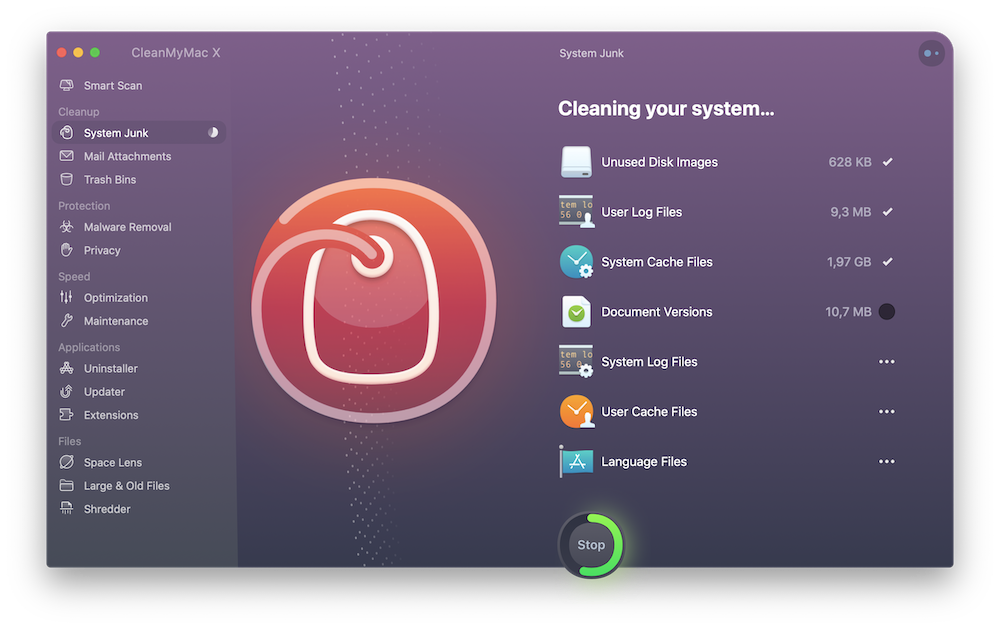
The easiest way to surely do everything in one tap is the smart cleanup, which in one fell swoop removes useless and excess files, scans for malware and tries to understand which routine activities can optimize system performance. Based on the amount of work, it can be an activity that lasts a few seconds or a few minutes. At the first launch just installed, for example, the app takes even more than a few minutes to clean the computer, because in addition to searching for cache files, temporary files and malware, it also searches for localization files of apps and the system, removing all those that are not like the system language.
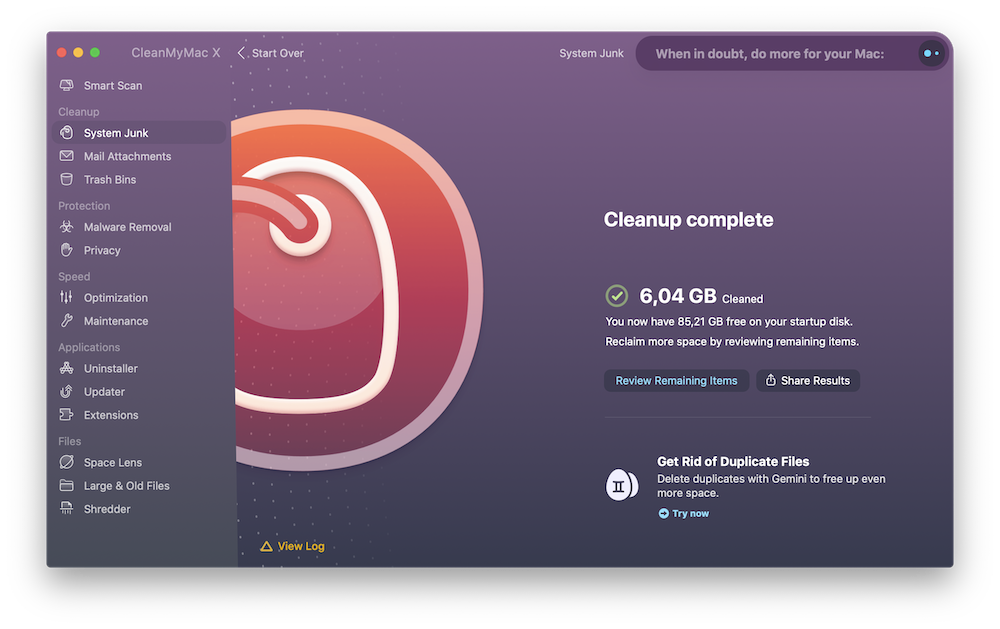
In reality, before performing this operation, you can go to preferences and, in the ‘General’ tab, select which languages to keep. Based on the number of installed apps, this first operation can also free up several gigabytes.
Extensions
Extensions can be useful, but they load the computer a lot, because they run together with other processes.
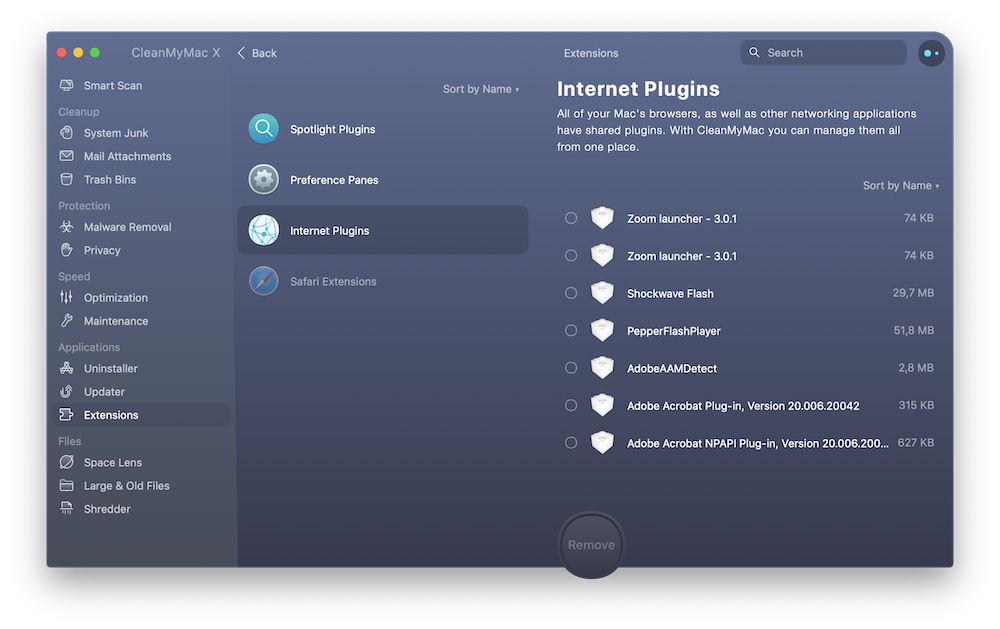
For example, there are Spotlight extensions, the universal search on macOS, which slow down precisely the search process. Then there are those of WebKit, the Internet plugins, which basically are extensions that integrate with all web browsers (so like Flash Player and all Adobe integrations). Some of these extensions can be configured directly from the settings, and with CleanMyMac X it is also possible to disable the configuration page in the settings, from the Preference panes section. And finally the Safari extensions, specific to that browser, which are installed directly from the Mac App Store now. Those cannot be removed from CleanMyMac X, but at least you have an overview of how many there are and how they ‘branch out’ into other apps (apps and extensions can in turn have other extensions or require other extensions to work or to offer more features).
Maintenance
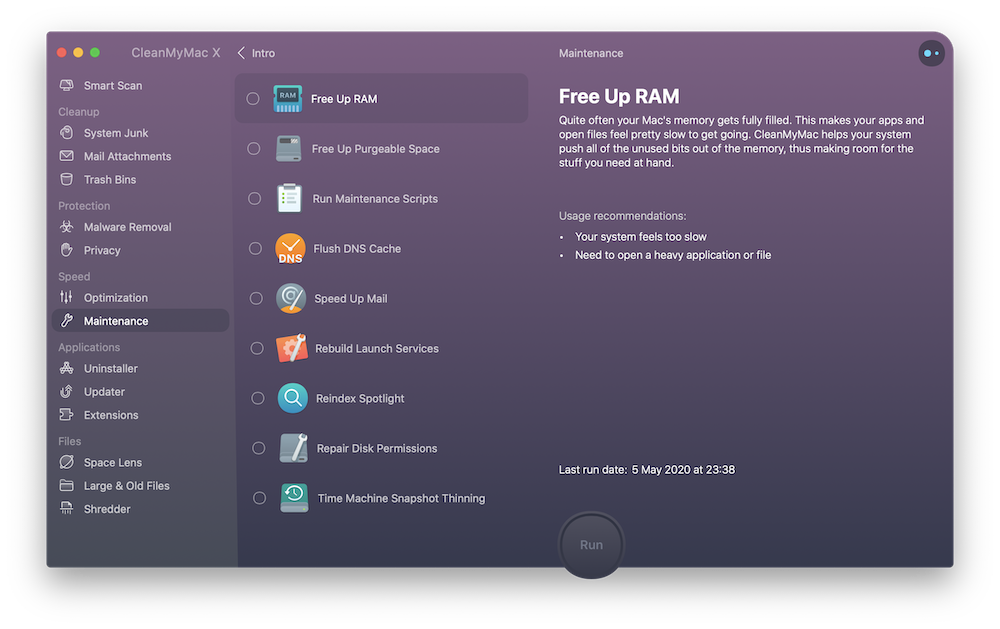
Often, after installing and removing many apps and moving many files, the internal memory (hard disk or SSD) can turn out disordered. This disorder leads to a slowdown of the computer, because the various processes have more difficulty finding the resources they need quickly. To rebuild the memory, you can once again use CleanMyMac X in the Maintenance section and perform a series of operations: the recommended ones are (not to block the computer for too long but reach an acceptable result) Free up RAM, Free up purgeable space, Run maintenance scripts and Flush DNS cache. These operations can last from a few seconds to a few tens of minutes, based on the level of file disorder. But the benefits are then decidedly visible.
Optimization
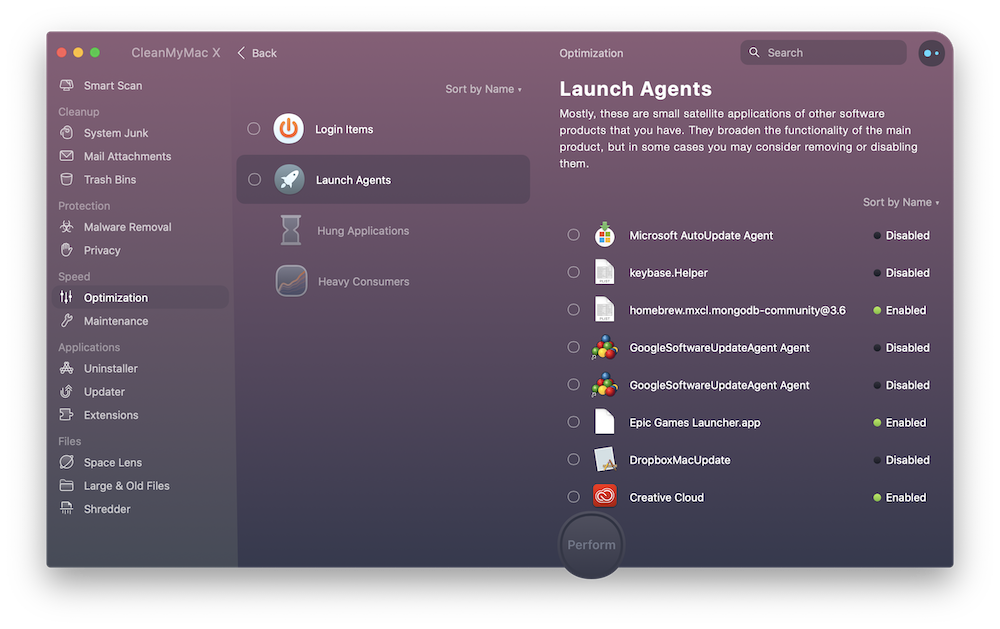
The problems of a Mac are already seen from startup. Just bought, everything is fast and snappy, but the more apps you install that require to be run together at system startup, the slower the startup will be. It is then increasingly difficult to find which are these apps, which very often do not display an icon in the dock and in the status bar. To clean the system from apps that ‘clutter’ startup, you can still use CleanMyMac X, going to Optimization -> Login Items. In this screen, there are different types of items: Helpers - which are support modules for apps, without which the app does not have access to other apps or the system for data sharing The apps proper Additional modules of apps (Pop-up menu, menu floating on the screen, etc.) It is good practice not to delete any app, but it is useful to enable or disable modules based on their use in a specific period, reducing at startup only those really necessary.
In addition to apps, a series of launch agents, small support applications or other software products are also run at startup. System services extend the functionality of the main app, but in some cases it might be useful to remove or disable them. In general, it is not advisable to remove them (to restore you would have to reinstall the app), but they can certainly be disabled. An example are the countless agents that are started to ensure the execution of Microsoft Teams and the Adobe Creative Cloud suite. This operation can also be performed on CleanMyMac X, going to Optimization -> Launch Agents. At the end of the cleaning, a restart of the computer is recommended.
Space Lens
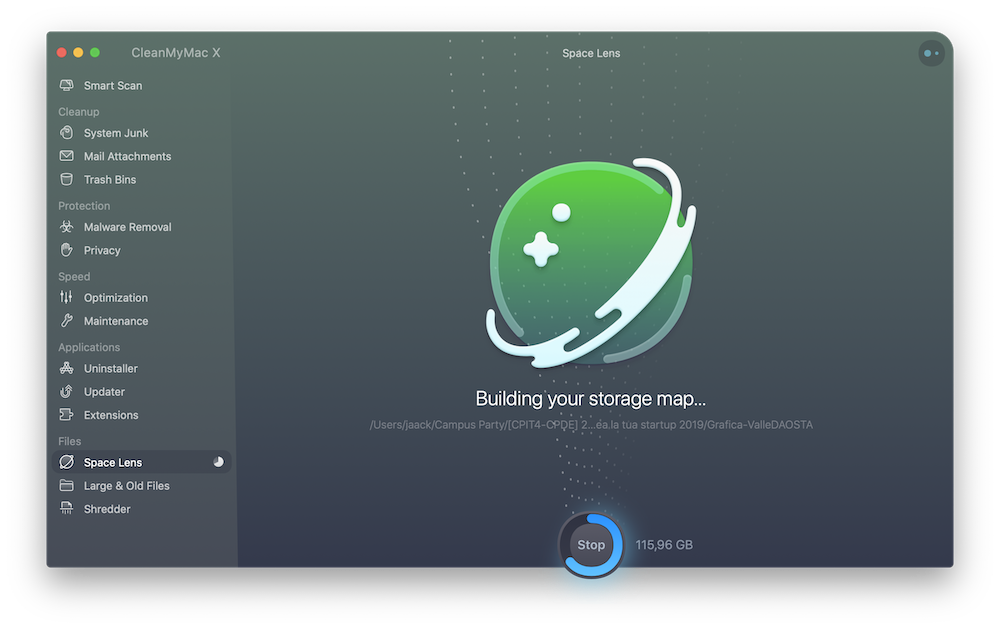
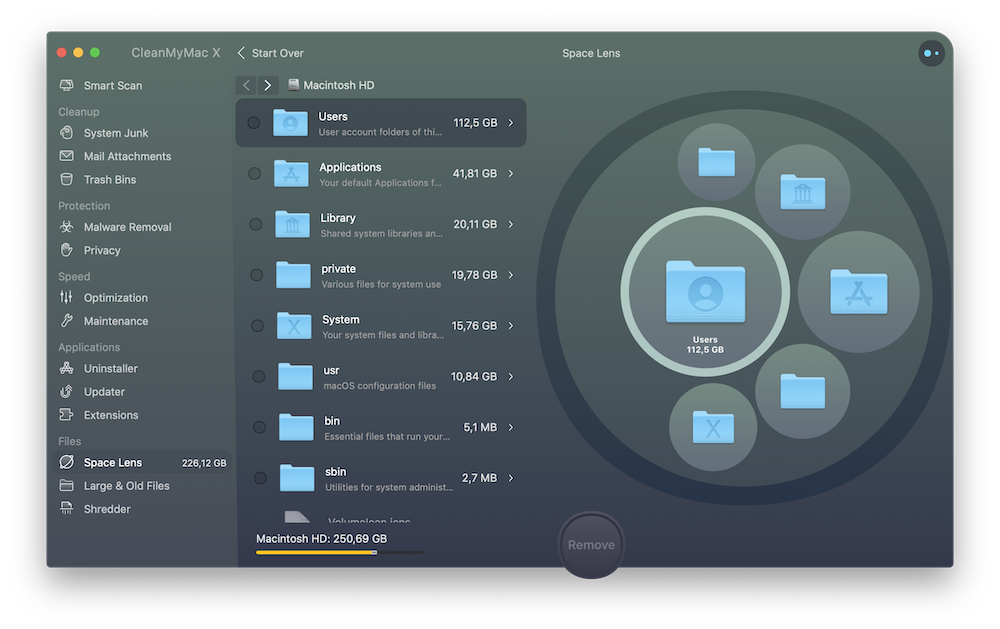
Very often the internal memory of the computer fills up without a particular reason: we install many apps, download many files and we no longer know where we put them. With the Space Lens, we can see which are the largest files, where they are and we can decide what to do with them. In most cases, the System folder, which is a system folder full of packages and, above all, the operating system. You must not touch it, because it is one of those folders that guarantee the functioning of the system together with /Users/USERNAME/Library/, /usr and /private.
Uninstaller
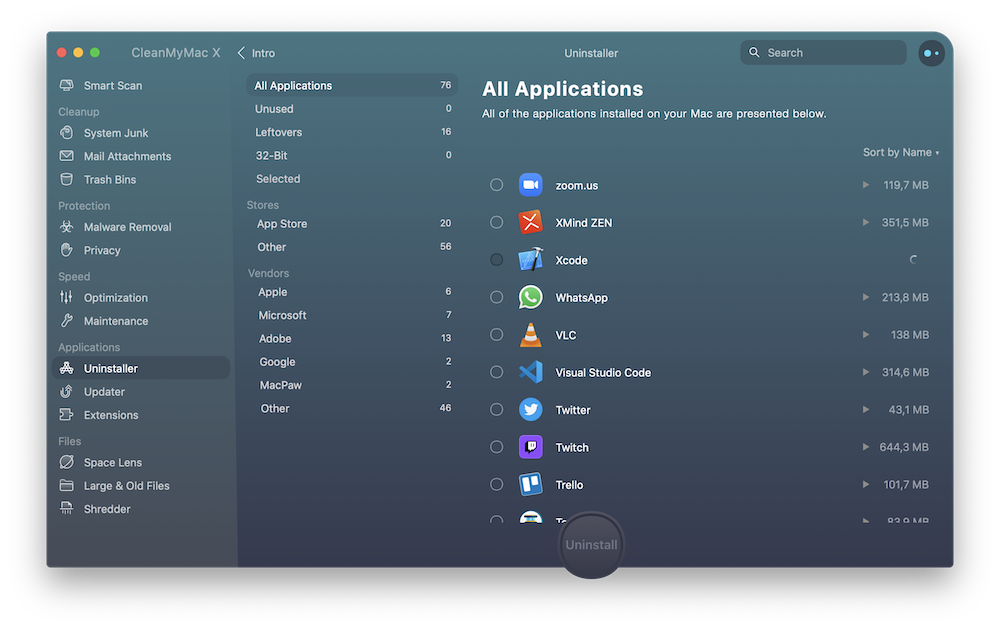
Sure, it’s not a fundamental feature: apps on macOS can also be uninstalled just by moving the app icon from the Applications folder to the trash, but with CleanMyMac X it is possible to uninstall up to 10 apps at a time. Useful when you want to do ‘thorough cleaning’ without formatting the computer from scratch.
I took months to write this overview: it is not so much a review, because there is little to judge: CleanMyMac X works well, you buy it by subscription because the continuous cash flow finances the development of new features and compatibility with new operating system updates, and it does its duty. Why not download it then?



Giacomo Barbieri
Head of Growth at Routescan. Building at the intersection of crypto infrastructure and AI agents.