
How to configure data pinning on IPFS with Pinata
Reading Time: 1-2 minutes
Note: this little guide is part of a series of guides to learn about and develop on IPFS.
Click here to go to the main page of the guide.
After installing the IPFS node on your computer, one can say that the content we put through the IPFS Desktop app is on IPFS and will remain there.
This is true but only partially. Since IPFS works - conceptually - like torrent, if the content is only on one computer and that computer is unavailable for any reason, that content is no longer retrievable.
For this reason, for some time now there have been services for IPFS called pinning services: a sort of cloud storage to guarantee data resilience. If they are not on your computer, the pinning service maintains them, guaranteeing their availability.
There are several pinning services, but for this guide we will use the Pinata service, which for now has proven to be the easiest and fastest to configure and use.
To register, just go to pinata.cloud creating credentials with email and password.
This guide would end like this, and it would be useless to even write it, if it didn’t make sense to explain Pinata’s features so that they are useful for distributing files and websites on IPFS.
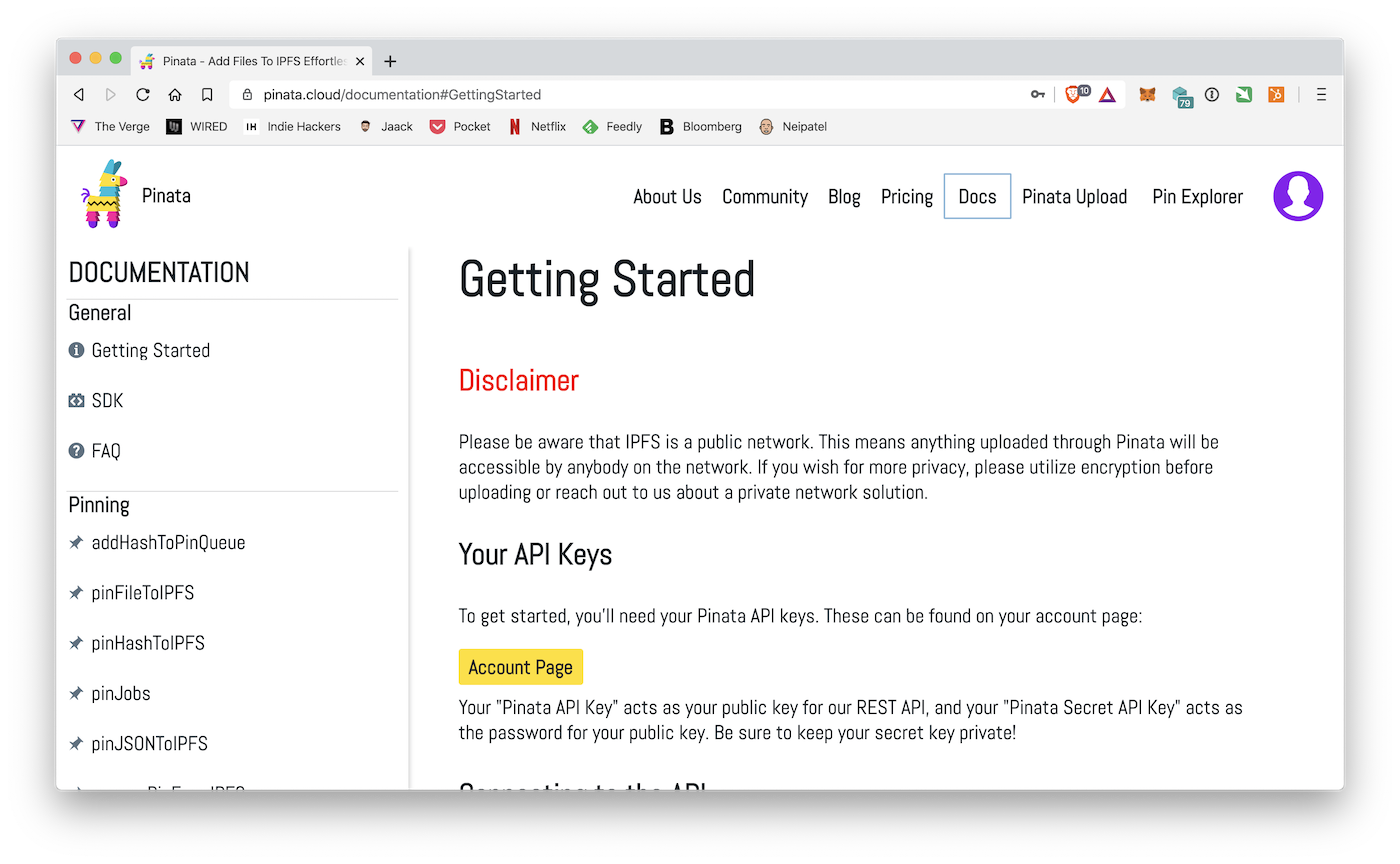
As soon as you log in to Pinata, the Getting Started screen appears, which is actually the most complex screen of all: it is the documentation on using Pinata’s APIs to create apps that use IPFS as decentralized storage. Not our case.
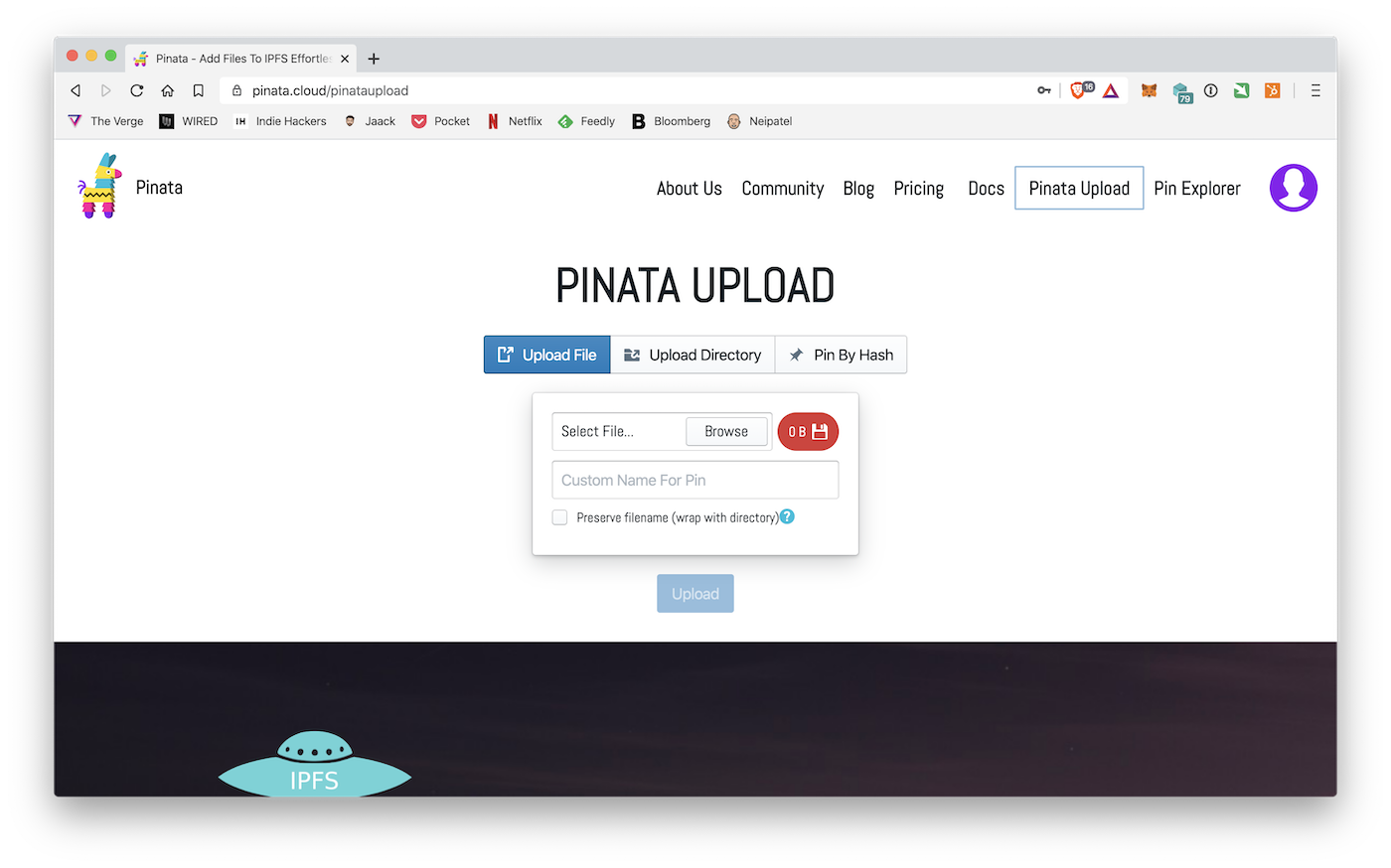
The Upload screen is similar to the Files tab on IPFS Desktop: it allows you to upload files to IPFS simply by uploading them to the web page, but in this case the files reside in the Pinata cloud and not on your computer.
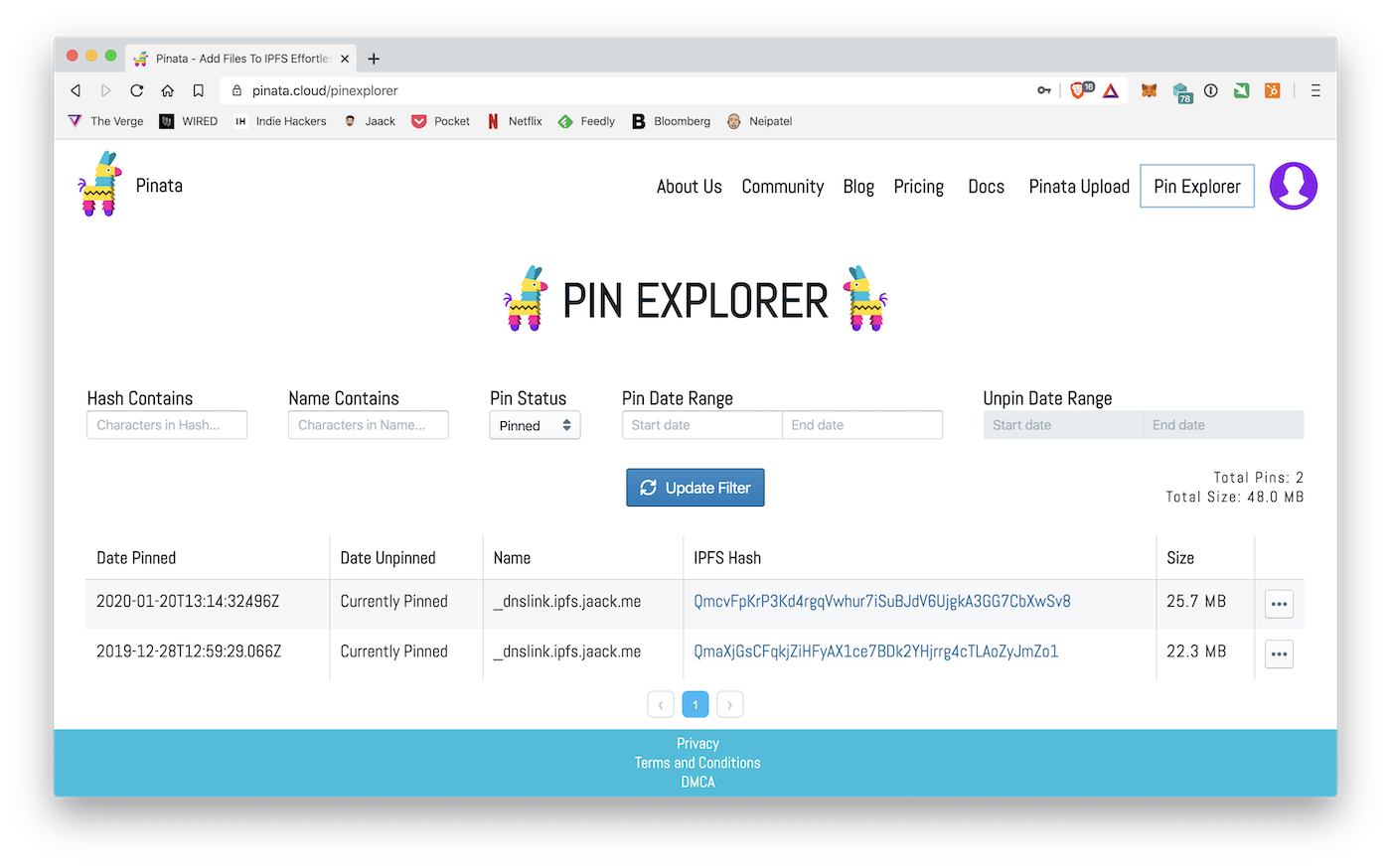
Whenever you upload a file or distribute a website on IPFS via Pinata, you can check the history of hashes linked to the uploaded files in the Pin Explorer screen. The screenshot above shows the two versions, one from December 2019 and one from January 2020, of the jaack.me site. Since Pinata has a free data upload limit per user of 1 GB, I try to keep only one version of the site for each month on Pinata, deleting the others.
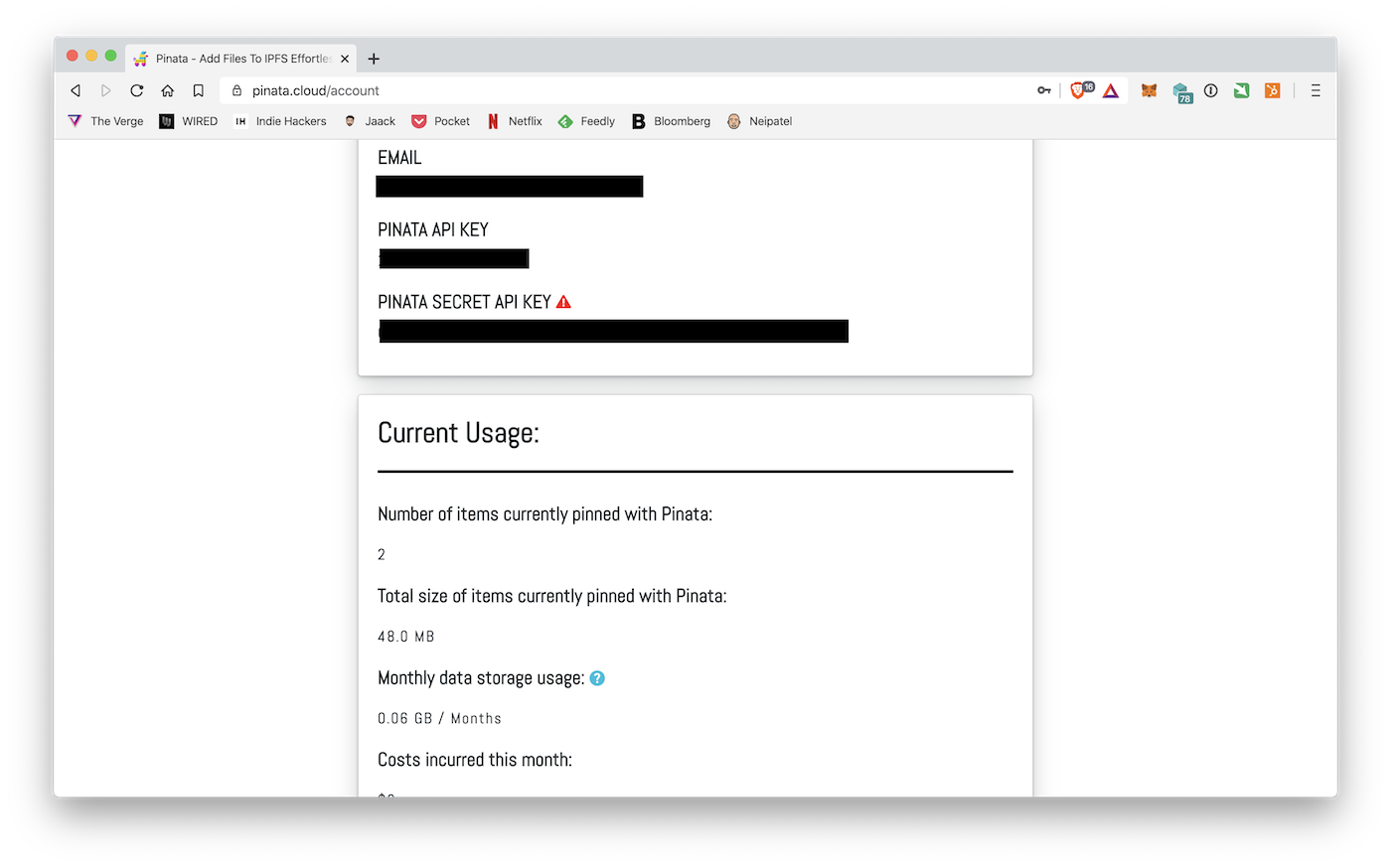
The last important screen is the account screen, which contains sensitive information relating to private keys that allow external applications and services to interface with the pinning service offered by Pinata. The relevant information - email, private key and secret key - will be fundamental in distributing your website on IPFS.


Giacomo Barbieri
Head of Growth at Routescan. Building at the intersection of crypto infrastructure and AI agents.